Online booking lets a client choose a service, pick a time that is free, and confirm the appointment without a phone call or an email thread. Workspace369 publishes the booking experience on a public page hosted at 369.dev and, if you want, on your own website as an embed. The public page speaks the visitor's own language, one of 32, with an optional override you set per page, and so do the emails, texts, and calendar invite the client receives afterward. Every booking lands on the calendar of the host — the team member who delivers the appointment — with the client's details attached.
How online booking fits together
Four pieces work together. The service decides what can be booked and under which rules, the booking page decides how it is presented, sharing or embedding decides where clients find it, and requests are what comes back.
| Piece | Where you set it up | What it controls |
|---|---|---|
| Service | Products, on a service-type product with online booking enabled | Duration, buffers, notice, hosts, location, payment, cancellation policy, reminders, and intake questions |
| Booking page | Settings → Scheduling & Tasks → Calendar Settings → Booking Pages | Which services appear, how hosts are chosen, layout and theme, and whether bookings are instant or need approval |
| Share or embed | The Share & embed action on a booking page | The public link, a QR code, and the inline, popup, and iframe snippets for your website |
| Requests | The Booking Queue on the Booking Pages screen | Acceptance, confirmation, and payment holds before a booking is final |
A workspace can have several booking pages. One of them is the default and answers the workspace's short booking link; every other page has its own link.
See it live
Every layout, theme, approval mode, and embed style runs on the booking embed examples page, and Set up a booking embed with an AI assistant is the page to hand to ChatGPT, Claude, or Copilot when you want the code written for you.
Before you start
- Your workspace is on the Specialist plan or above. Booking Pages is not available on lower plans.
- You are signed in as the workspace owner or an admin. Only these roles can open Booking Pages.
- The workspace timezone and business details are set. Availability is calculated in the workspace timezone, and the business name, logo, and description appear on the public page. See Workspace setup.
- At least one service-type product accepts public bookings. See Configure a service for online booking.
- Stripe is connected, if you plan to take a deposit or full payment at booking time. See Invoices and payments.
What clients see
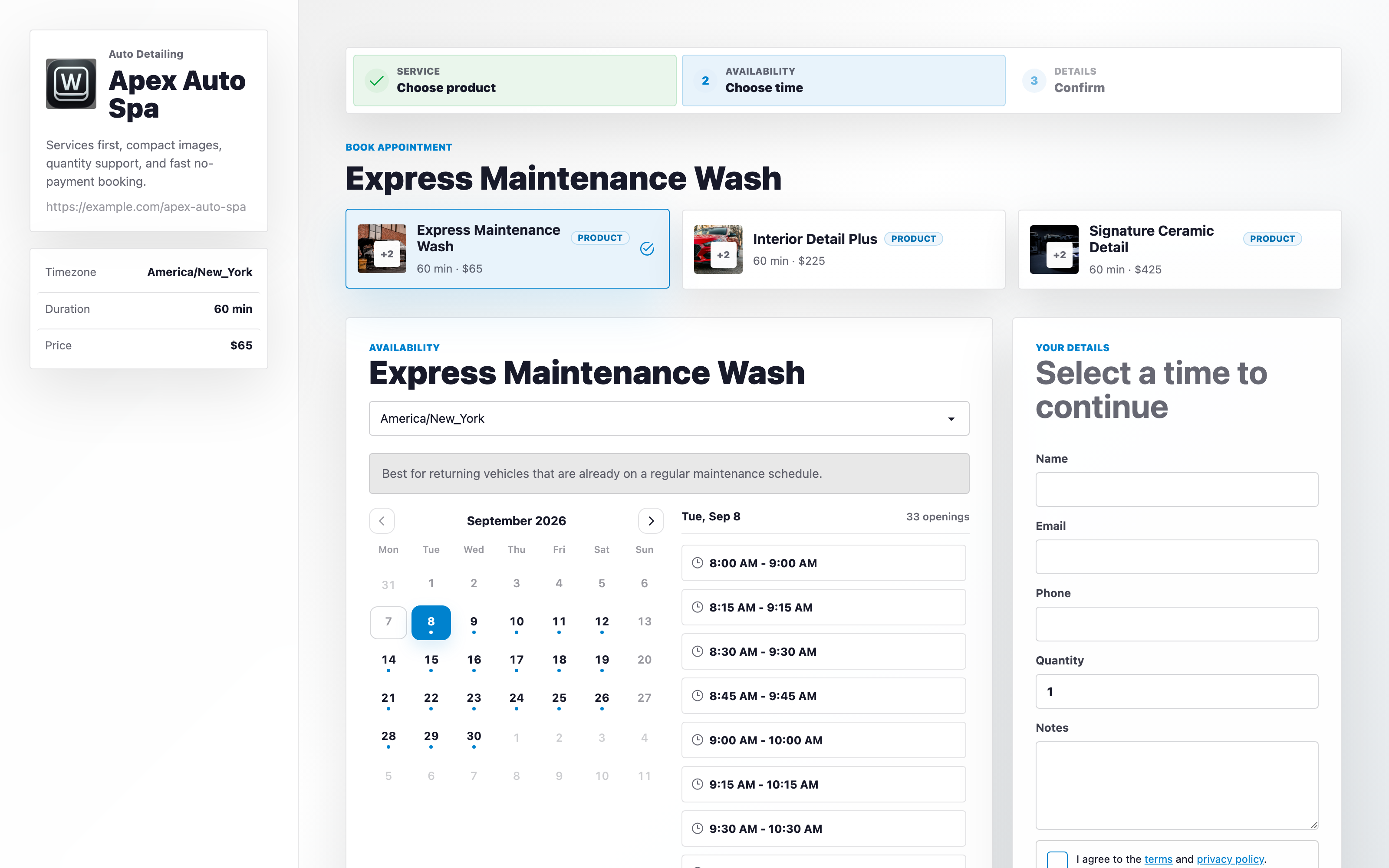
A client opens the link or the embed and moves through a short flow:
- Choose a service. Services are service-type products from your catalog, so the page labels this step Choose product. Each service shows its duration and price.
- Choose a host, when the booking page lets the client pick a team member.
- Pick a day and a time. A month calendar marks the days that have openings; the client chooses a day, then a time on that day. Only times that fit the host's hours, approved time off, workspace holidays, and the service's buffers, notice window, and blackout dates are offered. Times are shown in the client's own timezone, detected from their browser, and the client can change it with the timezone selector.
- Enter their details: name, email, phone, the quantity if the service allows it, notes, any intake questions you added, and acceptance of your terms.
- Read the confirmation.
When a service requires a deposit or full payment, the slot is held for 30 minutes while the client pays. If the payment does not complete in that window, the hold is released and the time becomes available again.
Where bookings go
An accepted booking becomes an event on the team calendar, assigned to the host, with the client's name and contact details attached. When the service uses Manual confirmation, the event is created as tentative until your team confirms it; otherwise it is confirmed immediately.
Every booking also creates a client record in Clients, or links to the existing record that matches the client's email address, with the lead source Online booking, so the booking appears on the client's profile. See Clients and CRM.
Bookings that still need a decision wait in the Booking Queue at the bottom of the Booking Pages screen: acceptance on a page that uses Request approval, confirmation on a service with Manual confirmation, or a payment that is still pending. See Manage booking requests.
The client receives a confirmation email with a calendar invite and a manage link they can use to cancel or reschedule within the service's policy, and reminders at the times the service specifies (24 hours and 1 hour before, by default) by email and, when the service has Text message reminders on, by text message. The assigned host can receive an email for each new booking as well.
Continue to Configure a service for online booking.
Online booking is available on the Specialist plan and above. Deposits and full payments require a connected Stripe account.