Workspace Voice can route a business number to the right person or team without separating the call from the Inbox and client record. Complete the routing setup before publishing the number to clients.
Before you begin
Confirm that you have permission to manage Inbox phone settings. Decide who should answer calls, what should happen outside business hours, and where unanswered calls should go.
If you plan to use SMS on the same number, complete the messaging registration and compliance steps required for the destinations you serve.
Provision a phone number
- Open the Inbox phone settings.
- Choose the option to add a phone channel or number.
- Search available numbers by area code.
- Review the selected number and provision it for the workspace.
- Confirm that the new phone channel appears in Inbox settings.
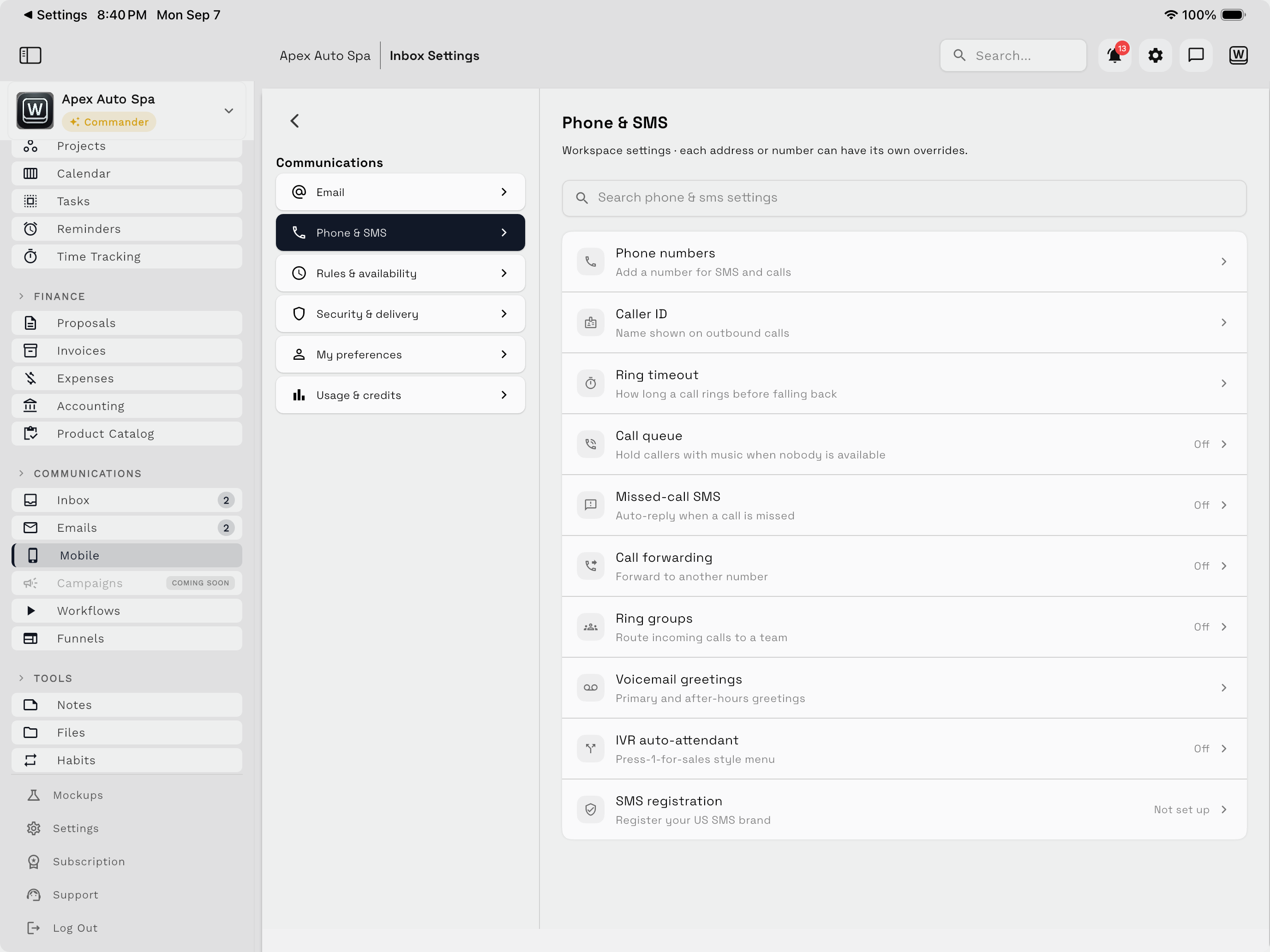
Provisioning adds a new number. Porting an existing number is not part of this flow.
Set business hours and closures
Configure the working hours for each day that the team accepts calls. Add holiday or vacation closures when the normal weekly schedule should not apply.
After-hours behavior should be deliberate. Use an appropriate greeting, voicemail destination, or forwarding rule so the caller knows what to expect.
Choose a ring-group strategy
Add the agents who should receive calls, then select the distribution mode that matches the team:
| Mode | Use it when |
|---|---|
| Simultaneous | Everyone in the group should be alerted at the same time |
| Round-robin | New calls should rotate through available agents |
| Longest-idle | The available agent who has waited longest should receive the next call |
Agent presence affects whether routing can reach someone. Review group membership and availability after team or schedule changes.
Configure a call queue
Use a queue when callers may need to wait for an available agent. Review:
- Hold music.
- Maximum wait time.
- Position or estimated-wait announcements.
- The destination used when the queue cannot complete the call.
Test the queue from an external phone. A configuration that looks correct in settings can still feel too slow or confusing to a caller.
Add an IVR menu
An IVR can collect keypad input and send a caller to a ring group or voicemail. Keep the menu short, state each option clearly, and make sure every route has a working destination.
Avoid creating more levels than a caller can reasonably remember. A direct route to a person or voicemail is usually better than an elaborate menu.
Configure no-answer forwarding
No-answer forwarding sends a call to another destination after a configured delay. Balance the ring timeout and forwarding delay so the primary team has time to answer without leaving the caller waiting through multiple long ring cycles.
Test the complete route
Call the number from outside the workspace and verify:
- Open-hours calls reach the intended group.
- The selected distribution mode behaves as expected.
- Queue audio and announcements are understandable.
- Each IVR option reaches the correct destination.
- After-hours and closure rules take effect.
- No-answer forwarding and voicemail provide a clear final outcome.
Continue to Voicemail, recordings, and AI to configure what happens during and after a call.
Calling availability, number inventory, and regulatory requirements can vary by country, destination, and workspace configuration.