An invoice should preserve the agreement between the client, the delivered work, and the amount due. Build it from the correct client record and review the final client-facing document before sending.
Create the invoice
- Open Invoices and start a new invoice, or create one from the connected client workflow when that action is available.
- Select the client and confirm the billing recipient before adding any billable details.
- Add each line item with the correct quantity and price.
- Apply the discounts and taxes that belong on this invoice.
- Set the issue date, due date, and payment terms.
- Add client-facing notes, payment instructions, or a payment plan when the balance will be collected in installments.
- Attach the relevant project, purchase-order, time, or document context when your process requires it, then keep the invoice in Draft until review is complete.
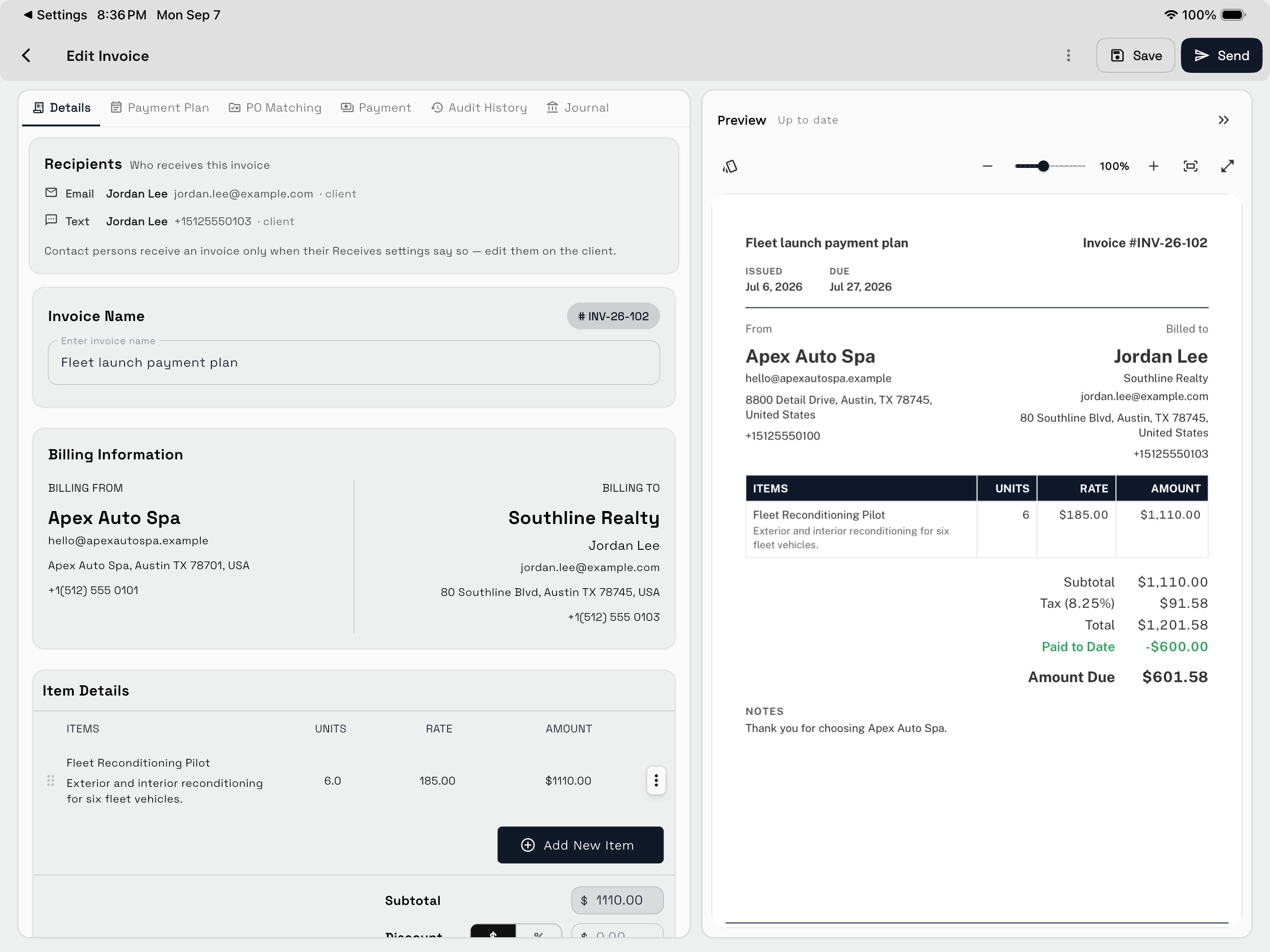
Review before sending
Preview the invoice as the client will receive it. Confirm:
- Recipient and business identity.
- Invoice number and currency.
- Line-item descriptions, quantities, prices, discounts, and tax.
- Total, due date, and payment terms.
- Payment instructions and client-facing notes.
If the invoice is still being prepared, keep it in Draft rather than sending an incomplete document and replacing it later.
Send the invoice or payment link
Share the invoice through the available client-facing action. A secure payment link can be generated for the invoice and sent through an available channel when the workspace is configured for payment collection.
Before sending a payment link, verify that it belongs to the intended invoice and recipient. Do not paste payment links into unrelated client conversations.
Keep the invoice in Draft if the client-facing document is incomplete. Send one reviewed record rather than replacing an avoidable mistake with a second invoice.
Track invoice status
Invoice views can distinguish Draft, Open, Past due, and Paid records. Use the existing record for follow-up rather than creating a duplicate invoice for the same balance.
When a payment arrives, verify the amount and the invoice it updates. Only use a manual mark-as-paid action when the payment was received outside the connected collection flow and the team has verified it.
Correct an invoice
Choose the correction that preserves the right history:
- Edit a draft when it has not been finalized or sent.
- Use an appropriate billing adjustment when the client-facing record must change.
- Use a credit note for a formal reduction or credit instead of deleting historical financial context.
- Record an external payment only after verifying the source, amount, date, and destination invoice.
Resolve a status mismatch
If the displayed status does not match what happened:
- Confirm the client and invoice number.
- Review the expected total and payment amount.
- Check for an installment, split payment, credit, or retainer application.
- Confirm whether a manual payment was attached to another invoice.
- Review the payment activity before changing status.
Continue to Payment plans, credits, and retainers for more complex collection workflows.