Connecting an AI app takes one URL and a sign-in. There is no API key to copy. You paste the server URL into the app, sign in to Workspace369 when the app asks, choose the workspace, and approve the permissions.
Before you begin
- A workspace admin must have turned MCP on. If no workspace has it enabled, the page tells you so after you sign in. See Enable MCP and manage connected apps.
- You sign in with your Workspace369 email and password. If you normally sign in with Google or Apple, set a password first under Account settings.
- If your account uses two-factor authentication, keep your phone nearby for the code.
Find the server URL
- Open Settings, then under AI choose AI Connections (MCP).
- Under Your AI apps, choose Copy server URL.
The URL is the same for everyone:
https://mcp.workspace369.com/mcp
Admins with MCP turned on find it in the Connect an AI app section instead.
Add the server in your AI app
Every MCP app has a place to add a remote server. The only value Workspace369 needs from you is the URL above; choose the Streamable HTTP transport if the app asks. A script or agent that cannot open a sign-in page uses a personal access token instead.
- Open your AI app's connectors, integrations, or MCP settings.
- Choose the option to add a server or custom connector.
- Paste the server URL and give the connection a name such as Workspace369.
- Save. The app opens the Workspace369 sign-in page.
Where an app is configured from a file rather than a settings screen, the entry looks like this. Cursor and Windsurf use the first shape; VS Code uses the second.
{
  "mcpServers": {
    "workspace369": {
      "url": "https://mcp.workspace369.com/mcp"
    }
  }
}
{
  "servers": {
    "workspace369": {
      "type": "http",
      "url": "https://mcp.workspace369.com/mcp"
    }
  }
}
Approve the connection
The sign-in page is served by Workspace369, so the AI app never sees your password. When the app returns to its own website, such as claude.ai or chatgpt.com, the page shows the app's logo beside the Workspace369 logo. Apps that return to your computer, such as desktop and command-line apps, show the first letter of their name instead.
- Enter your Workspace369 email and password, then choose Continue.
- If prompted for a verification code, enter the code sent to your phone.
- Under Choose a workspace, pick the workspace to connect. Only workspaces where MCP is enabled and you are a member are listed. If there is only one, it is already selected.
- Read the summary of how many permissions the app will get, then choose Review approved permissions to change them.
- Set the level for each area, then choose Done.
- Choose Approve access.
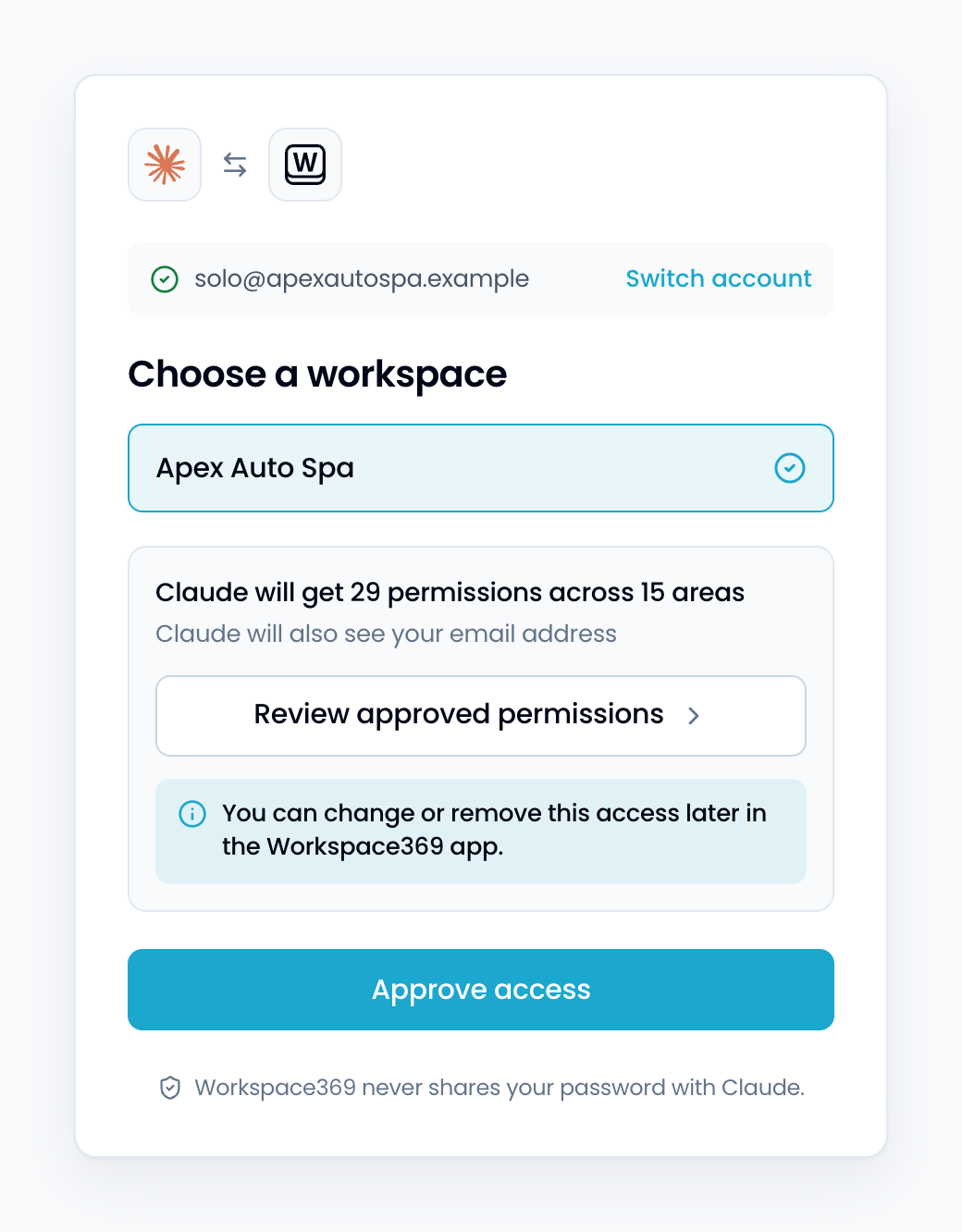
The app confirms the connection and lists the Workspace369 tools it can use. The workspace owner is notified that you connected an app.
Choose what the app can do
Each area the app asks for, such as Clients or Invoices, has its own row and level. Each level includes the ones before it, and only the levels the app asked for appear, so an area might offer just None and View.
| Level | What the app can do in that area |
|---|---|
| None | Nothing. The area is left out of the connection. |
| View | Read records. |
| Edit | Read, create, and edit records. |
| Edit and send | For Proposals and Invoices, also send them to clients. |
| Search | For Inbox, search messages. |
| Send | For Inbox, also send messages on your behalf. |
| Turn workflows off | For Workflows, also turn a workflow off. Testing a workflow and reading its runs need only View. A connected app cannot create a workflow, retry a failed run, or turn a workflow on. Do those in the app or with AI AutoPilot. |
| Draft | For Contracts, also create draft contracts. |
| Send and void | For Contracts, also send contracts, remind recipients, and void contracts. |
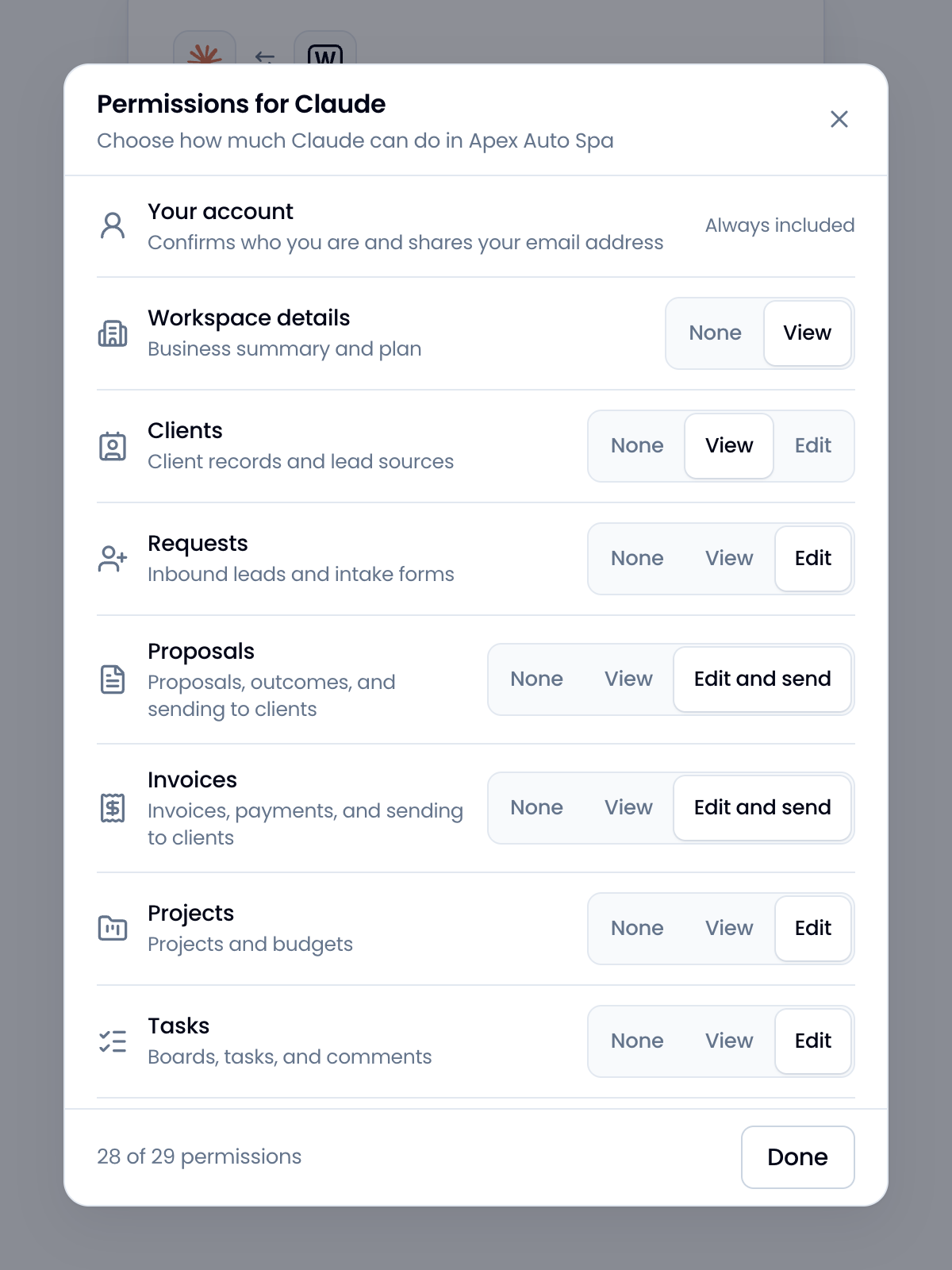
The Your account row is always included. It confirms who you are and, when the app asks, shares your email address. To change the levels later, disconnect the app and connect it again. See Disconnect an app.
Try it
Start with a question that only reads data:
- "Give me a summary of my workspace."
- "Which invoices are overdue?"
- "What is on the calendar tomorrow?"
Then try an action, for example "Create a task on the Onboarding board to send the welcome pack." The record appears in Workspace369 exactly as if you had created it, and the activity trail records that it came from your AI app. The MCP tools reference lists everything an app can do.
Connect a second workspace
AI apps identify a connection by its URL, so connecting a second workspace through the shared URL replaces the first one in the app. To keep both, use the workspace-specific URL shown in the Connect an AI app card under "Already connected another workspace? Use this instead, so both stay connected":
https://mcp.workspace369.com/w/{workspaceId}/mcp
Add it as a separate server in the app and approve it the same way. Each workspace then appears as its own connection that you can add and remove independently.
Disconnect an app
- Open Settings, then under AI choose AI Connections (MCP).
- Under Your AI apps, in Your connections, find the app and choose Disconnect.
The app loses access immediately. You can reconnect it at any time. Admins can also disconnect any member's apps from AI Connections (MCP).
If something does not work
- "No workspace is ready to connect" after you sign in. Ask a workspace admin to enable MCP under Settings, AI, AI Connections (MCP), then start the connection again.
- The app says it lacks a scope or permission. Either you set that area to None or a lower level when approving, or your Workspace369 role does not include it. Disconnect and reconnect the app to grant more, and ask an admin about your role. The app can never gain access your role lacks.
- "This request expired." A connection request is valid for 10 minutes and can be approved once. Start the connection again from the app.
- The app reports that the workspace is out of Tokens. Every successful call is paid in Tokens. Top up the workspace balance and try again; nothing was charged for the refused call. See How MCP access is controlled and billed.
- A send was refused because the client opted out. Workspace369 will not email or text a client who has opted out of that channel, from the app or from an AI app. Clear the opt-out on the client record if it is wrong.
- The app is rate limited. One connection may make 120 calls per minute and a workspace 600. Wait for the minute to pass.
- A browser-based AI app cannot reach the server. Desktop apps, server-side connectors such as ChatGPT, and command-line tools are unaffected. Claude on the web is supported. Contact support with the app's name if another browser-based app is blocked.